라이브 사이트에
핀으로 남기는 피드백
Pin feedback
on live pages
클릭 → 핀 → AI 분류 → Jira / Slack / PR 까지. 호스트가 한 번만 설정하면, 리뷰어는 설치 없이 링크만으로 사용합니다.
Click → pin → AI triage → ship to Jira / Slack / PR. One-time host setup; reviewers just open a link — zero install.
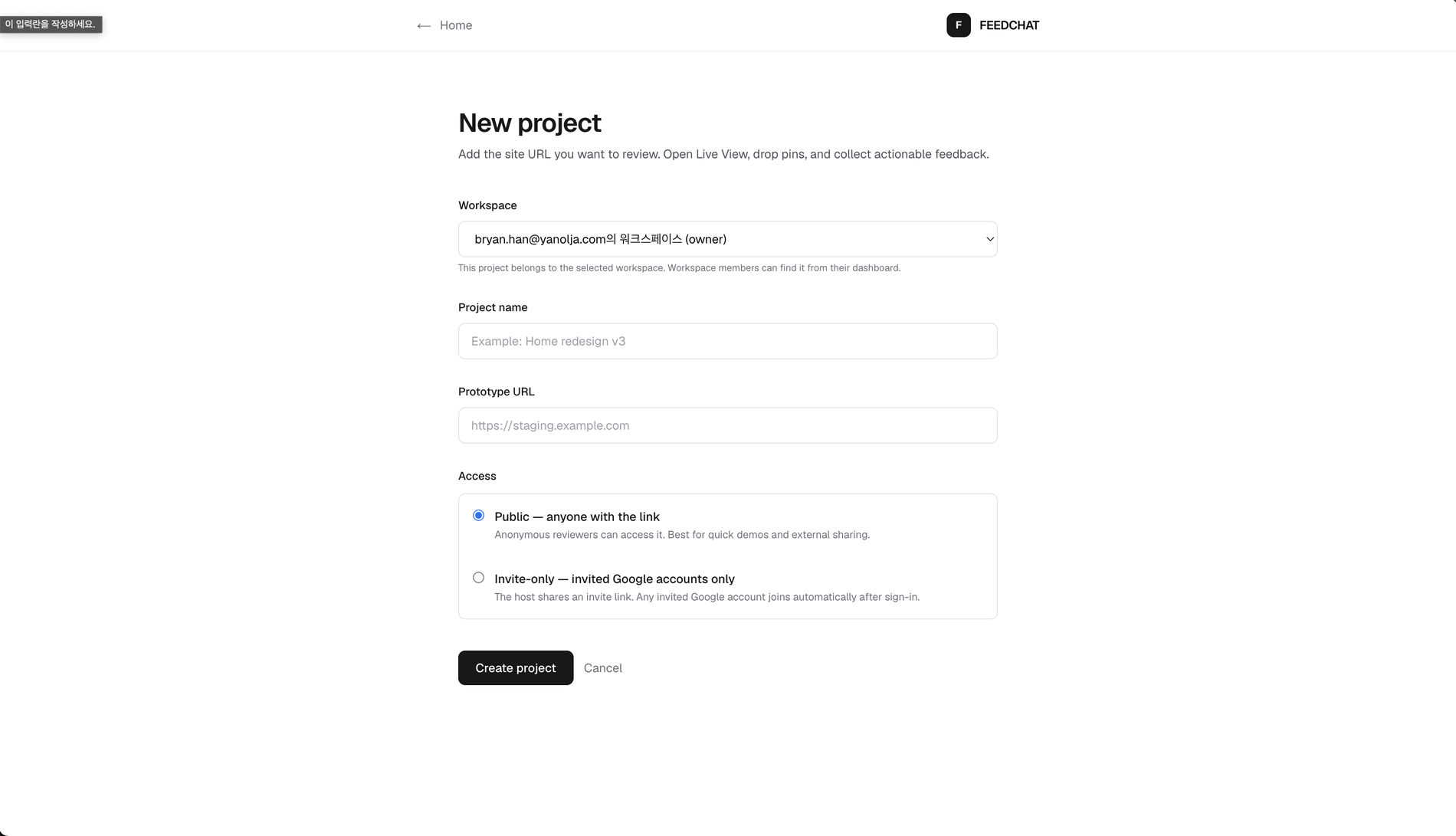
호스트 셋업 — URL 하나로 새 프로젝트
Host setup — a new project from one URL
이점URL 하나로 5분 셋업, 이후 반복 0 — 리뷰 공간이 즉시 열림.
Why it helpsOne URL, ~5-min setup, then never again — a review space opens instantly.
- Workspace + Project name + Prototype URL 입력
- Workspace + Project name + Prototype URL
- Access — Public(익명 OK) / Invite-only(허용 도메인 구글)
- Access — Public (anonymous) / Invite-only (allowed-domain Google)
- Try with URL — 공개 페이지는 코드 없이 바로 1차 리뷰
- Try with URL — public pages work for first-pass reviews without code
- Widget — 반복 운영용. 세션·DOM·캡처가 가장 정확
- Widget — most reliable for recurring team reviews
- Chrome companion — Load unpacked: extensions/chrome-companion, 로그인/내부 도구 리뷰
- Chrome companion — Load unpacked from extensions/chrome-companion for logged-in apps
비번 걸린 사이트도 OK — Setup → External site password에 한 번 저장하면 자동 통과.
Password-gated sites supported — save it once in Setup → External site password and FEEDCHAT handles it.
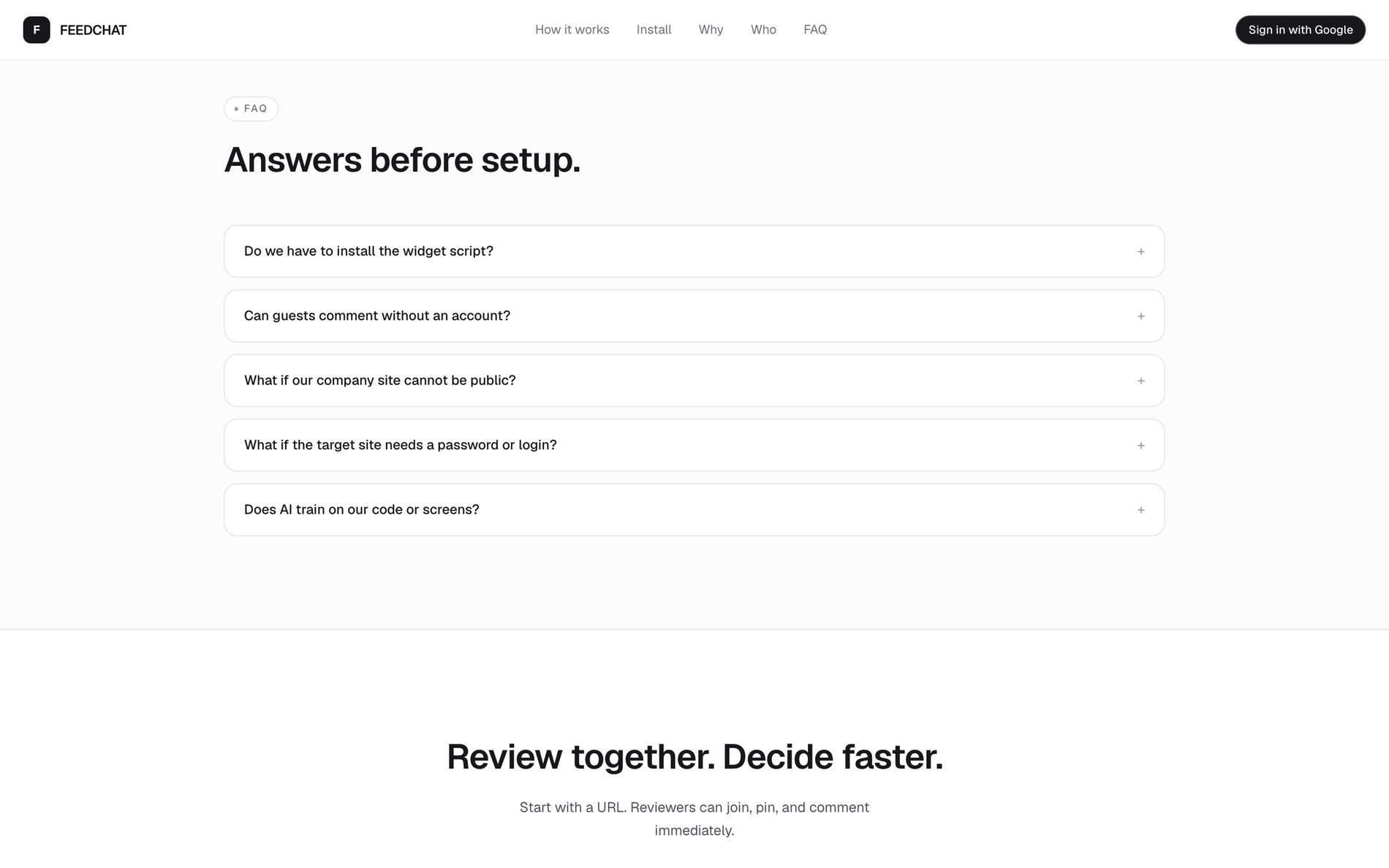
자주 묻는 질문
Answers before setup
이점설치 · 보안 · 프라이버시 걱정을 도입 전에 해소 — 막힐 곳이 없음.
Why it helpsInstall, security, privacy — cleared up front, nothing to block adoption.
- 시작 방식? URL preview, widget, or Chrome companion — 상황별로 선택.
- How do we start? URL preview, widget, or Chrome companion — choose by constraint.
- 위젯 꼭 설치? 아니요. 공개 페이지는 URL, 로그인/내부는 Chrome companion(Load unpacked), 운영은 widget.
- Must we install the widget? No. URL preview first, Chrome companion via Load unpacked, widget for operations.
- 익명 코멘트? Public은 OK · Invite-only는 도메인 구글 계정.
- Guests without an account? Public yes; invite-only = allowed-domain Google.
- 비번 걸린 사이트? Setup에 한 번 저장 → URL 토큰 + 쿠키로 자동 통과 (Chrome).
- Password-gated? Save once → URL token + cookie carries it (Chrome best).
- AI가 코드/화면 학습? 안 함. 분류 결과는 우리 DB에만.
- Does AI train on our code/screens? No — classification stays in your DB.
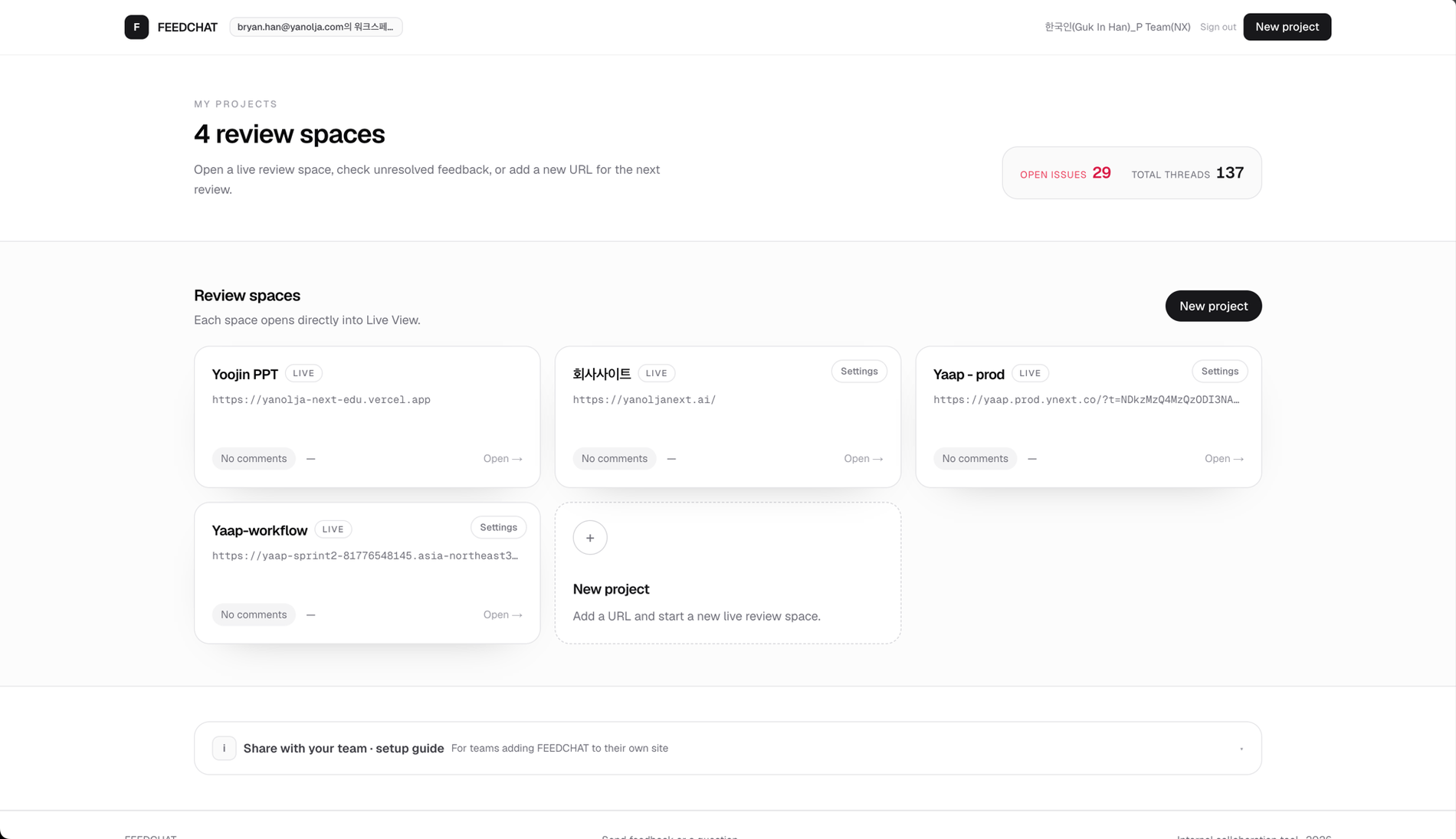
홈 대시보드 — 내가 호스트인 프로젝트 한 눈에
Home dashboard — all your review spaces at a glance
이점모든 리뷰 공간과 미해결 이슈를 한 화면에서 장악.
Why it helpsEvery review space and open issue — commanded from one screen.
- 카드 클릭 → Live View 바로 진입
- Click a card → straight into Live View
- + New project로 새 리뷰 공간 (URL 하나면 됨)
- + New project adds a space — one URL is enough
- 오너만 카드 Settings → Project details / Integrations
- Hosts get Settings → Project details / Integrations
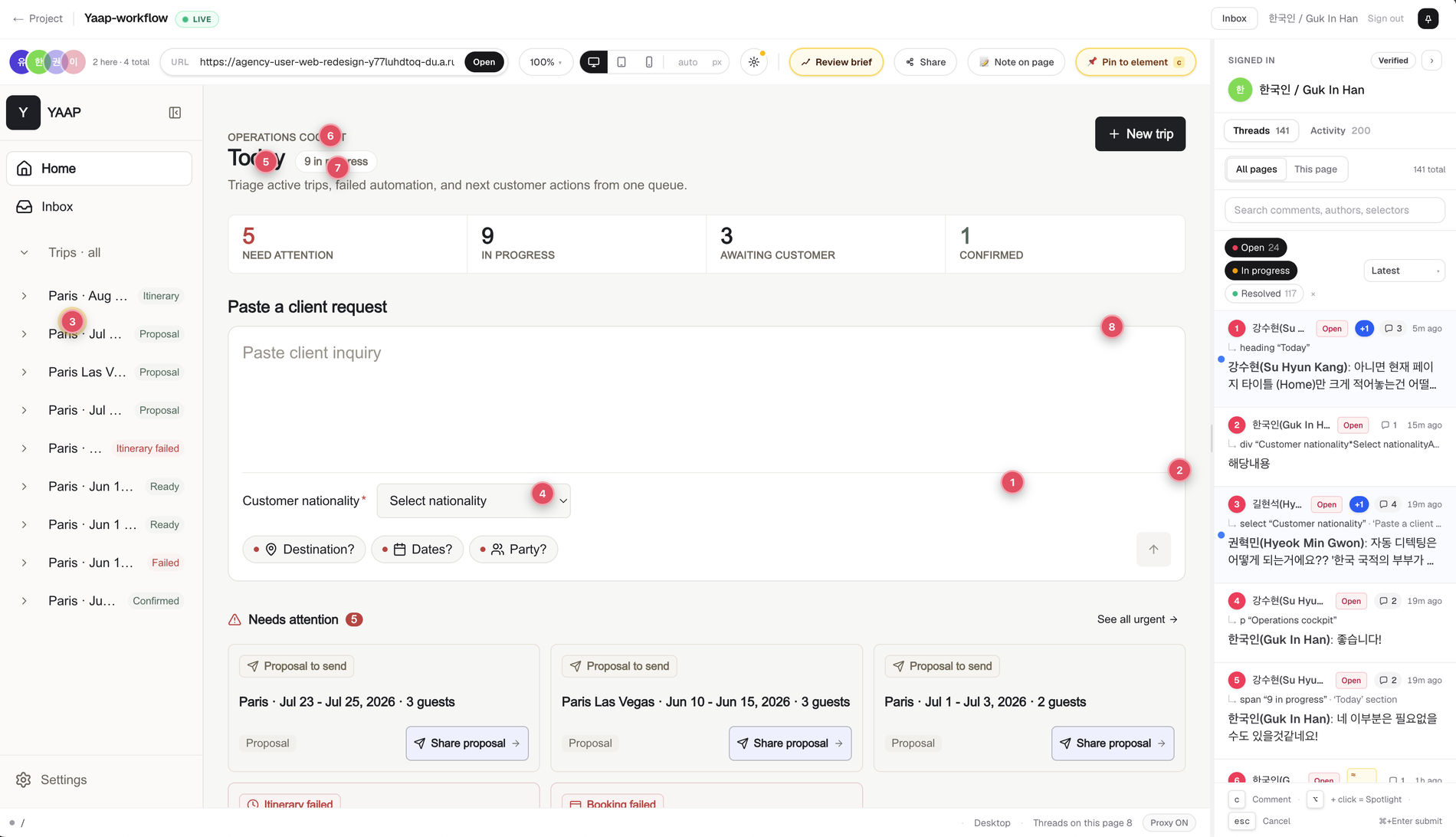
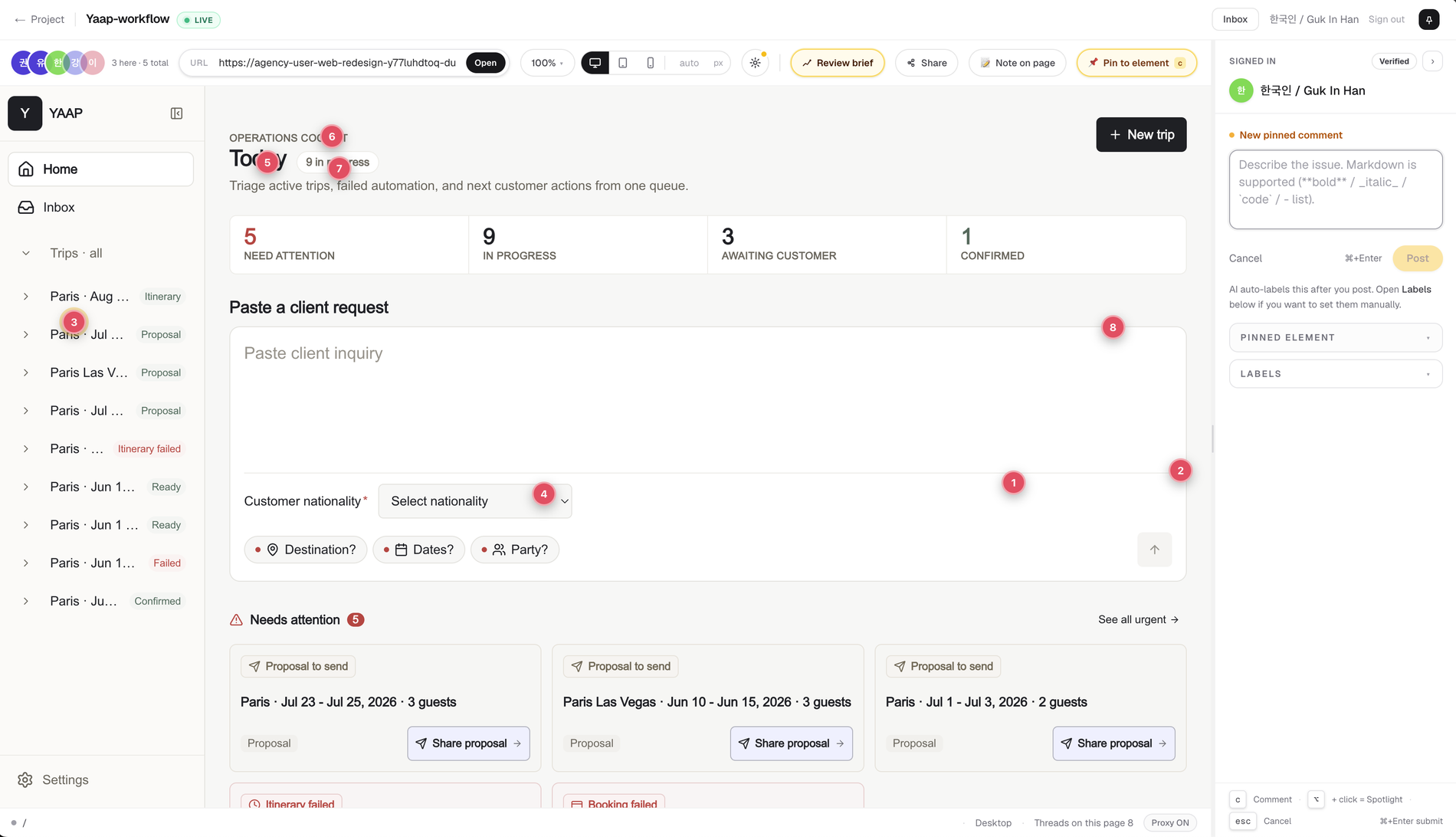
Live View — 실제 사이트 위에 얹힌 작업 도구
Live View — your toolbar on top of the real site
이점따로 캐시·정리 없이, 보는 그 자리에서 피드백.
Why it helpsFeedback right where you're looking — no caching, no cleanup.
- 오른쪽: 스레드 목록 (Open / In progress / Resolved 필터)
- Right: every thread with Open / In progress / Resolved filters
- 실시간 동기화 — 다른 리뷰어 코멘트가 즉시 표시
- Live sync — others' comments appear instantly
- ⌥+click = Spotlight — 핀의 해당 요소 강조
- ⌥+click = Spotlight the linked element
요소를 핀으로 콕 찍어 코멘트
Pin an element and leave a comment
이점본문만 쓰면 끝 — 라벨·위치·컨텍스트는 자동으로 따라붙음.
Why it helpsJust write the note — labels, location and context attach themselves.
- c 또는 Pin to element로 Pin 모드 ON
- Press c or click Pin to element
- 요소 클릭 → 우측 New pinned comment 패널
- Click an element → the New pinned comment panel opens
- 본문 입력 → ⌘+Enter · AI가 라벨 자동 부여
- Type → ⌘+Enter · AI auto-labels
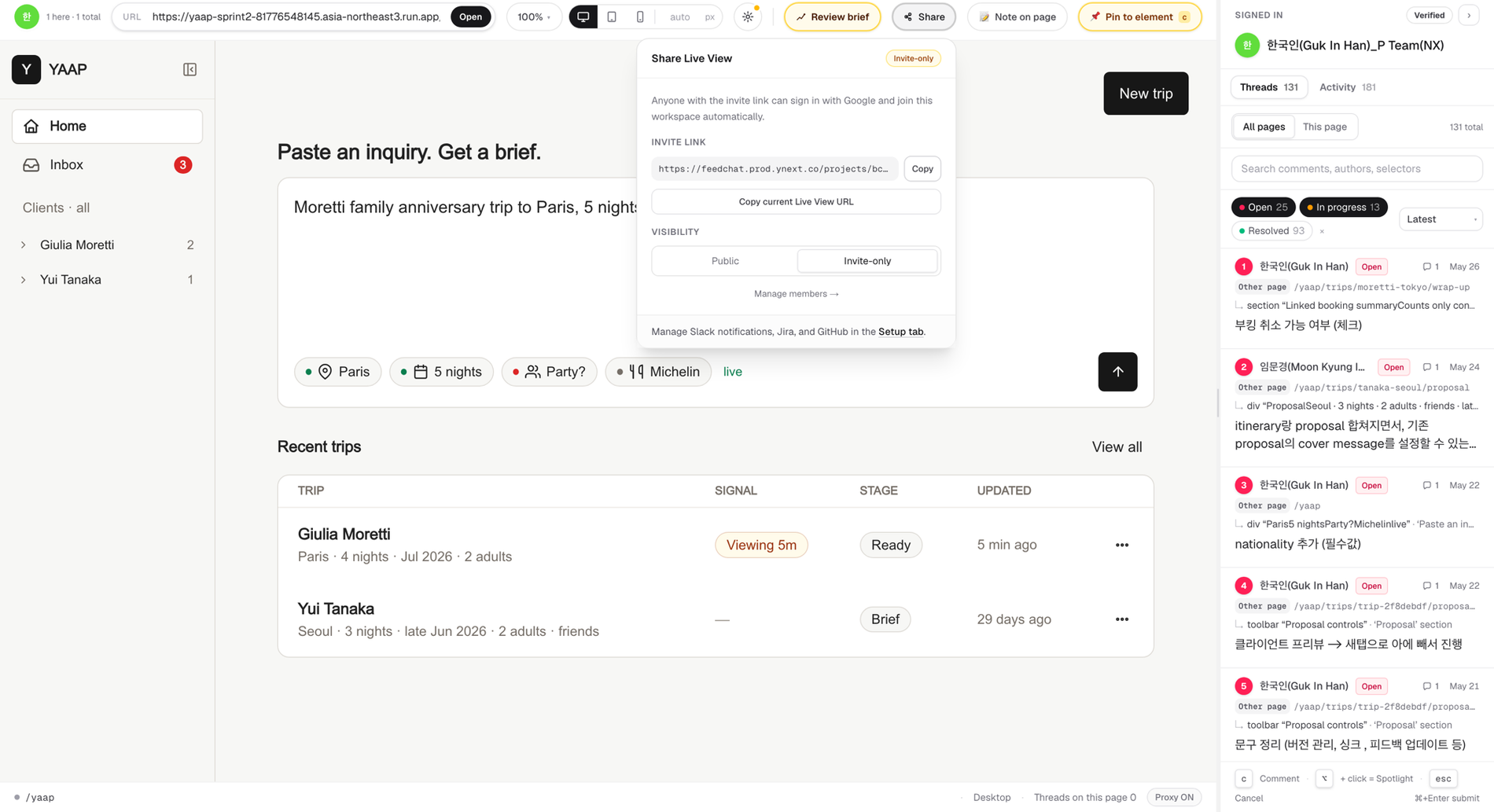
팀과 공유 — Invite link 하나로 끝
Share the project — one invite link
이점링크 하나로 팀 합류 — 계정·권한 세팅 왕복 0.
Why it helpsOne link brings the team in — no account or permission setup.
- 툴바 Share → 초대 링크 + 공개범위가 한 화면
- Toolbar Share → invite link + visibility in one popover
- Public(익명) / Invite-only(허용 도메인 구글)
- Public (anonymous) / Invite-only (allowed-domain Google)
- Copy current Live View URL — 지금 보는 페이지로 바로 · Regenerate로 즉시 무효화
- Copy current Live View URL drops them on this page · Regenerate kills the old link
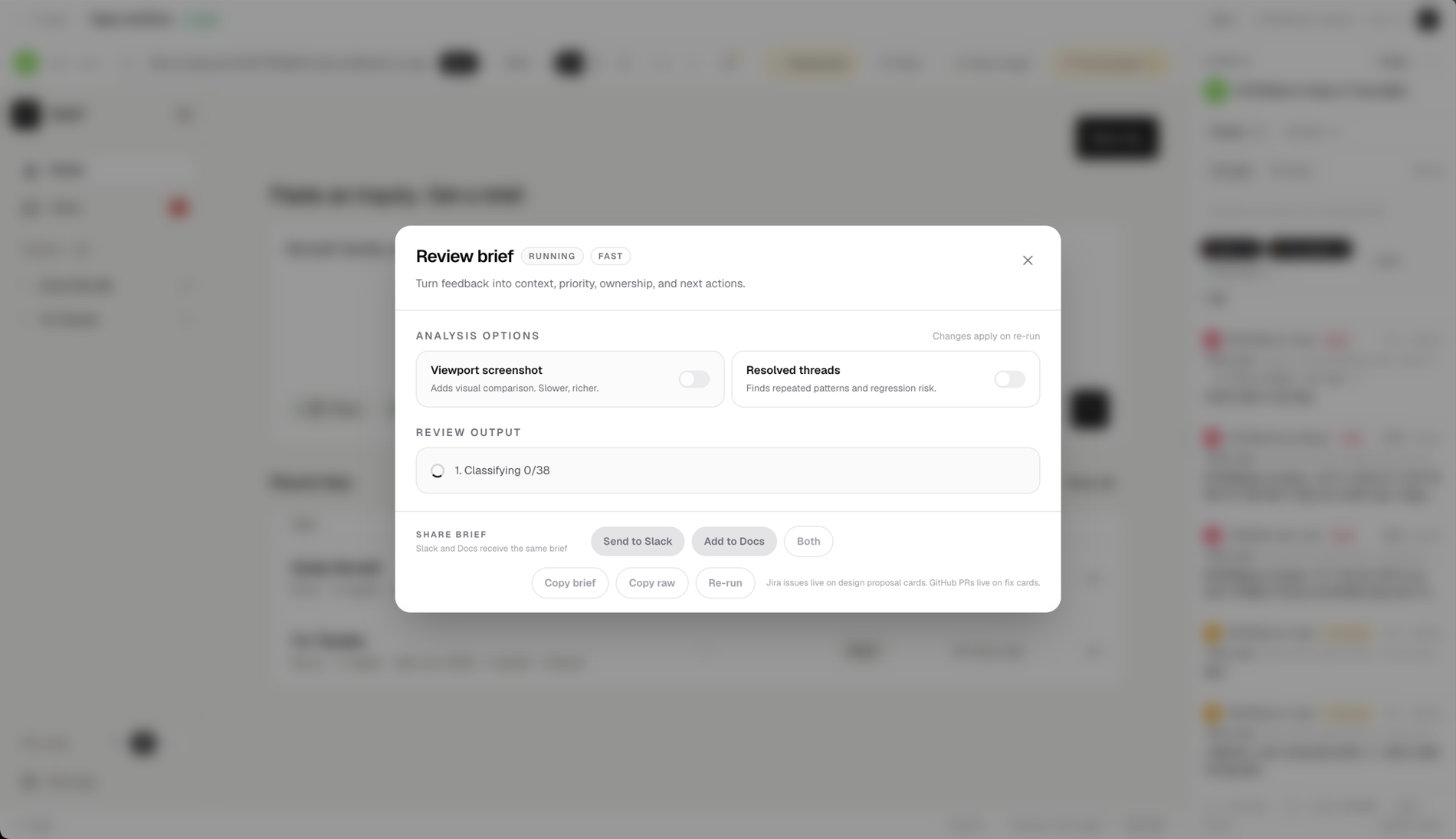
Review brief 실행 — AI가 모든 스레드를 분류
Review brief in progress — AI classifies every thread
이점흩어진 스레드를 AI가 한 번에 분류·우선순위화.
Why it helpsAI sorts and prioritizes every scattered thread in one pass.
- Viewport screenshot — 현재 화면을 visual finding으로 함께 분석
- Viewport screenshot — include the screen as a visual finding
- Resolved threads — 닫힌 스레드까지 포함, 회귀 위험 분석
- Resolved threads — include closed threads for regression risk
- 4단계 스트림: Classifying → Triage → Drilling → Rendering
- Streams 4 stages: Classifying → Triage → Drilling → Rendering
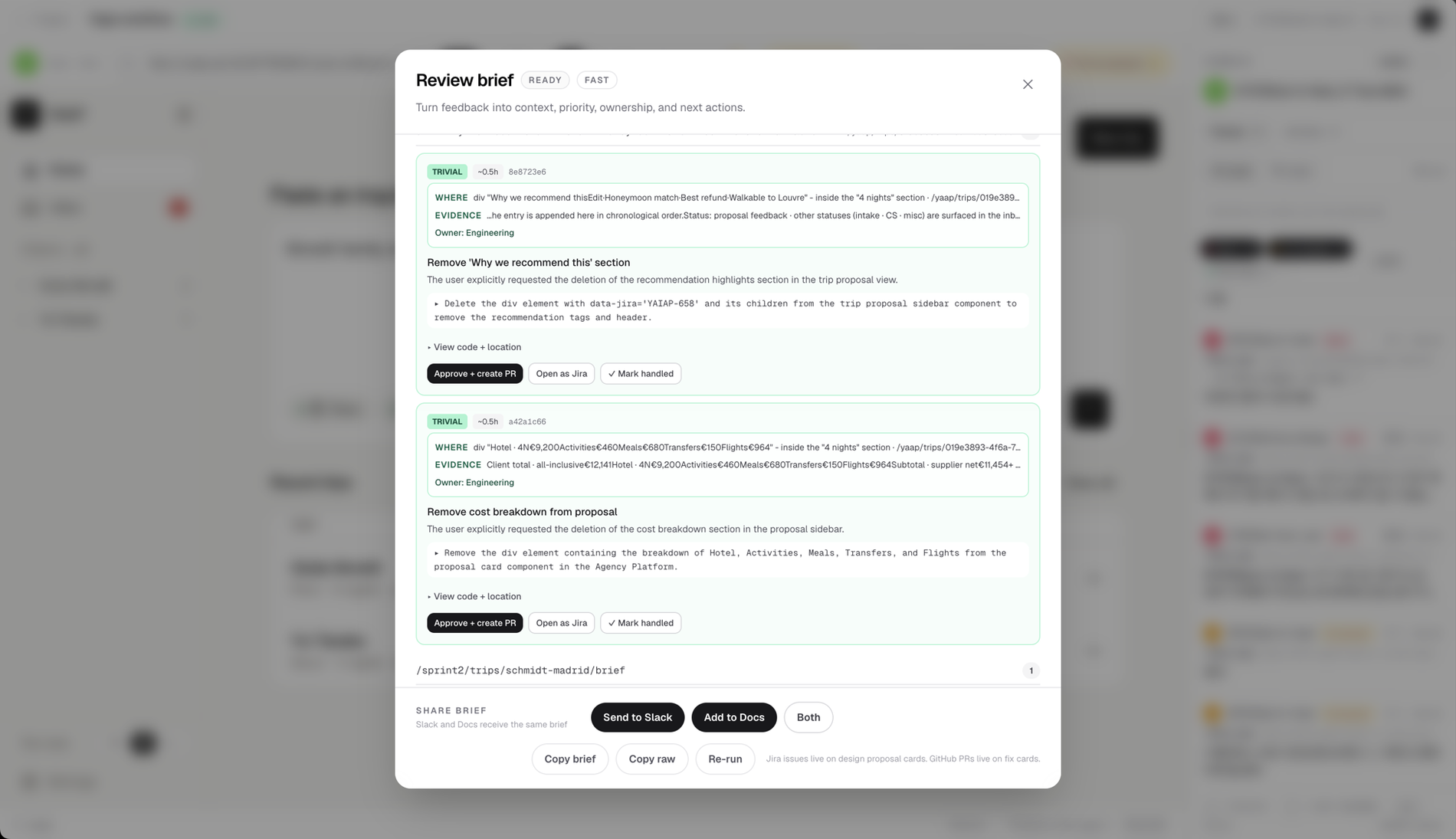
Review brief 결과 — 카드별로 다음 액션 명확
Review brief output — every card has a clear next action
이점카드마다 '다음 액션'이 정해져 나온다 — 바로 PR · Jira · 완료.
Why it helpsEvery card arrives with its next action decided — PR, Jira, or done.
- 각 카드: 난이도 · 예상 시간 · 소유자 · 근거(WHERE / EVIDENCE)
- Each card: difficulty · effort · owner · evidence (WHERE / EVIDENCE)
- Approve + create PR (자동수정) · Open as Jira · Mark handled
- Approve + create PR · Open as Jira · Mark handled
- 하단 일괄: Send to Slack · Add to Docs · Copy · Re-run
- Footer: Send to Slack · Add to Docs · Copy · Re-run
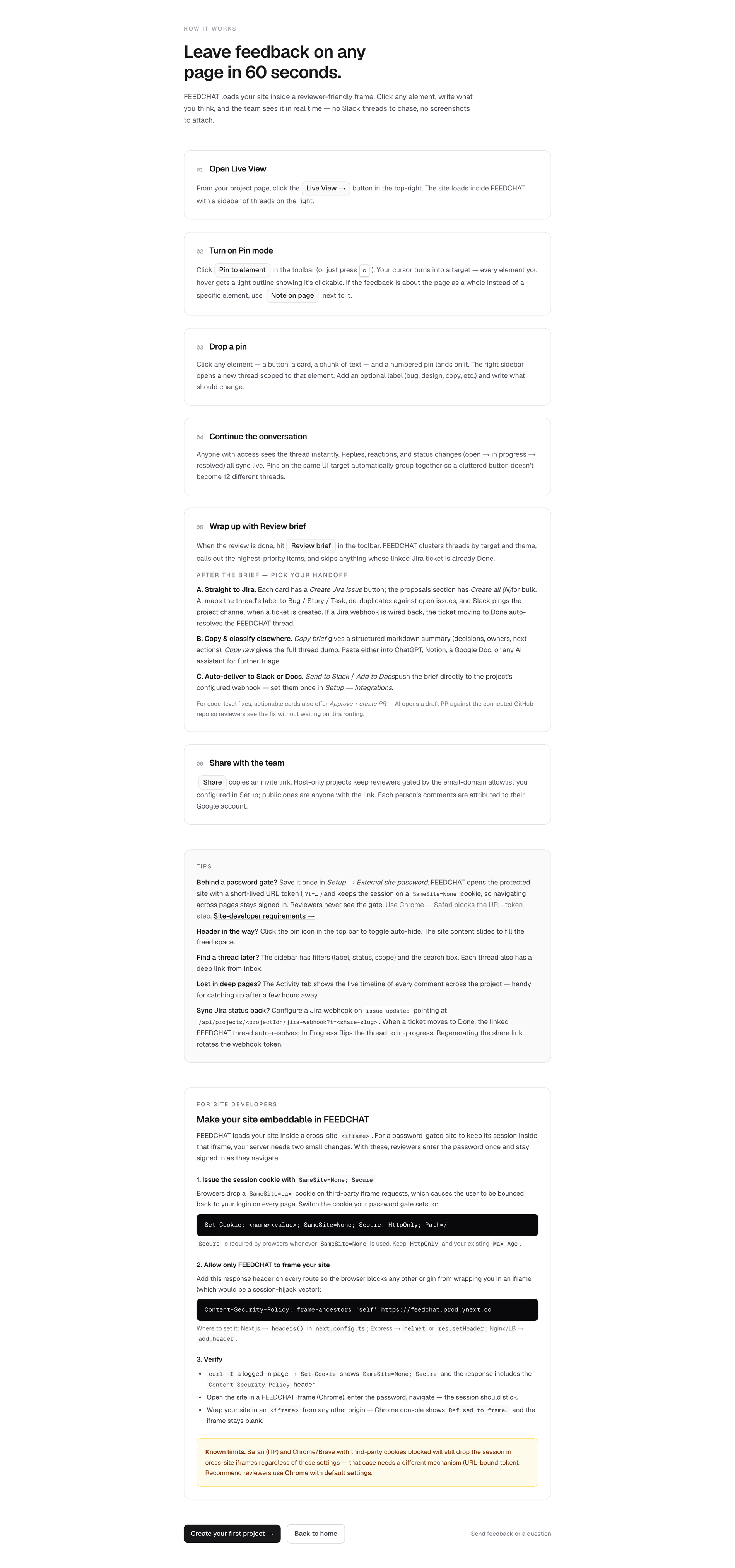
/help — 60초 안에 따라가는 온사이트 가이드
/help — the 60-second on-site guide
이점막히면 60초 가이드 + 슬랙 직행 — 도입 마찰 0.
Why it helpsStuck? A 60-second guide and a direct line to Slack — zero friction.
- 6단계 walkthrough — 열기 → 핀 → 스레드 → 마무리 → 공유
- Six-step walkthrough — open, pin, thread, wrap-up, share
- For site developers — SameSite=None 쿠키 + CSP 정확값
- For site developers — exact cookie + CSP values
- 맨 아래 Send feedback or a question — 호연팀 슬랙 직행
- Footer Send feedback or a question → maintainer's Slack